Kitora
 help
How to use Kitora
Find help with installation, kit checks, training records, reports and backups.
Start with your task
What do you need help with?
Know this before restoring
Back up before restoring
Kitora saves records on your computer. Choose Create backup to make a separate copy. Restoring a backup replaces the records currently in the app, so keep a safety backup before you continue.
How do I install Kitora on Windows?
Download the installer from the Kitora download page, open Kitora-Setup-1.0.0-x64.exe and follow the prompts. Kitora 1.0.0 is not code-signed, so Windows may show a Microsoft Defender SmartScreen message because it cannot identify the publisher. Check that the filename and download site are correct before you continue.
Where are my records stored?
Kitora keeps its database and certificate attachments in its local application data on this computer. You do not need to find or copy that folder. Use Create backup inside the app when you want a portable copy.
How do I make a backup?
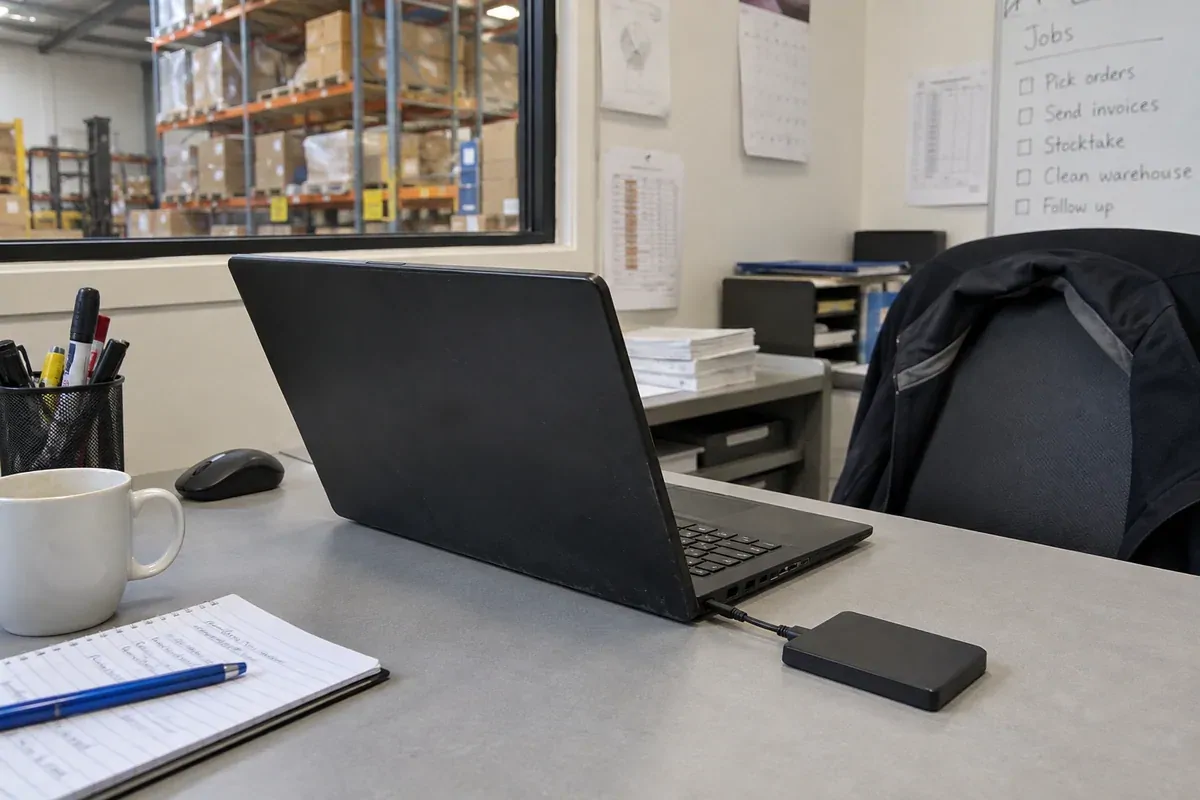
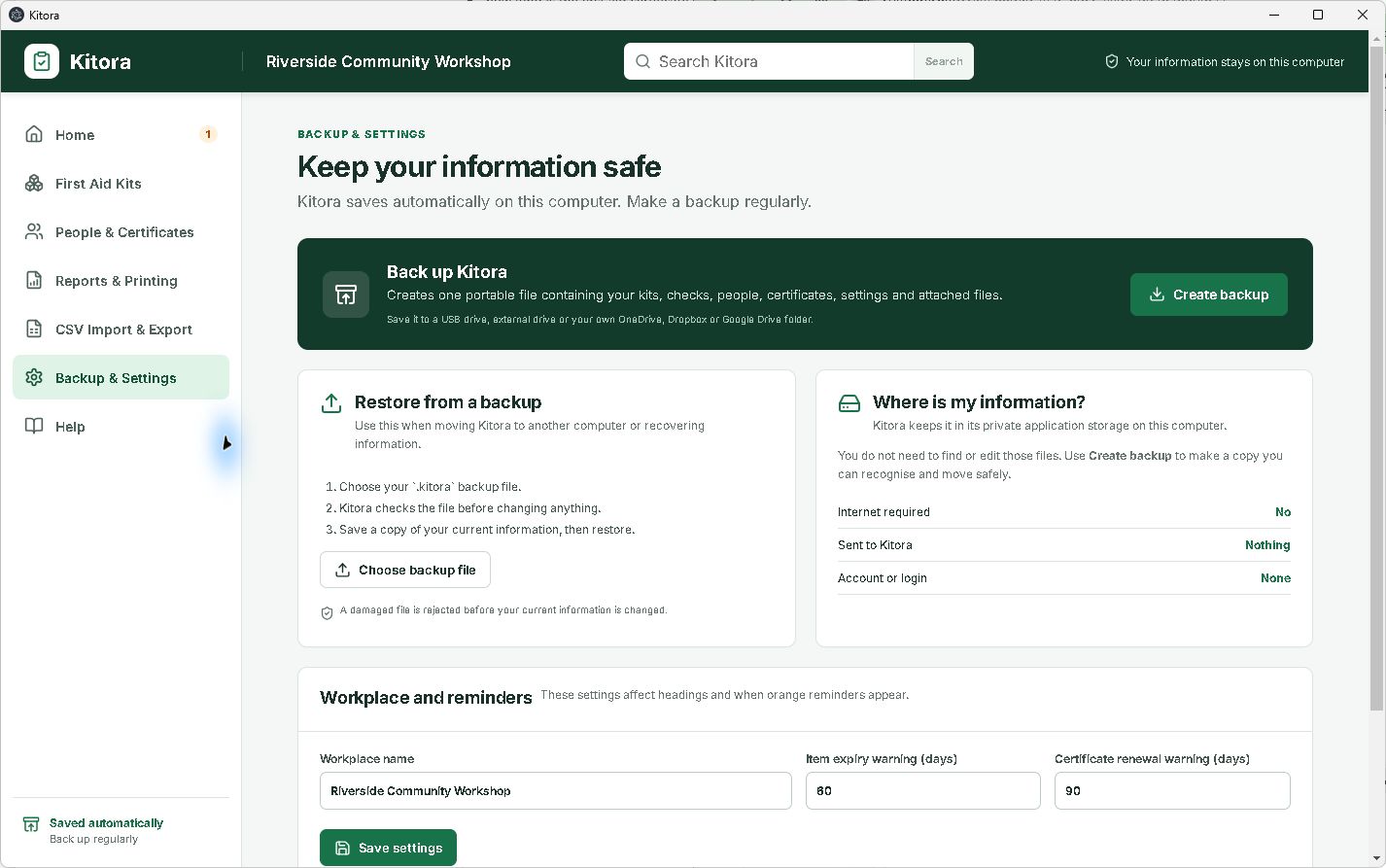
Open Backup & Settings, choose Create backup, then save the .kitora file somewhere separate from the computer, such as a USB drive or a folder you manage. The backup includes your Kitora records and certificate attachments. Keep a recent copy somewhere you can still reach if the computer fails.
How do I move Kitora to another computer?
On the old computer, open Backup & Settings and choose Create backup. Move the saved .kitora file to the new computer. Install Kitora there, open Backup & Settings and select Choose backup file. Kitora checks the file and offers to save a safety backup before replacing the current records. Follow the prompts to restore.
Does Kitora sync between computers?
No. Kitora has no cloud account or automatic sync. To transfer the whole set of records, make a backup and move that file using a USB drive or a storage service you choose. The privacy and security terms of that destination then apply to the copy.
Can I uninstall Kitora?
Yes. Make a backup first if you may need the records later, then uninstall Kitora through Windows Settings. A backup is the practical way to recover your records if local app data is later removed.
Does Kitora decide what first aid arrangements my workplace needs?
No. Kitora organises the checks and records your workplace chooses to keep. Safe Work Australia’s national model guidance says first aid arrangements vary with the work, hazards, workplace size and location, and the number of people. The model Code does not automatically have legal effect in every jurisdiction, so check the requirements and approved code applying through your state, territory or Commonwealth regulator.
Start with Safe Work Australia’s first aid guidance and its model Code of Practice: First aid in the workplace.
Help is also available in the app
Open Help in Kitora for instructions on kit checks, certificates, reports, CSV files and backups. The in-app help works offline.
Everyday tasks
How do I add first aider training?
Open People & Certificates and add the person. Add a certificate with its course, provider and dates. You can attach a PDF, PNG, JPEG or WebP file up to 10 MB. Check the dates against the training record and your workplace’s requirements.
How do I print or save a report?
Open Reports & Printing. Choose a report and any filters, then select Print or Save as A4 PDF. Reports include restocking, item expiry, certificate renewals, inspection history and blank kit checklists.
Where can I find an older kit check?
Open the kit and choose View all checks beside Check history. Open a dated check to see its saved counts, expiry dates, checker and notes. Later changes to the kit do not change that saved inspection.
Are renewal reminders sent by email?
Renewal warnings appear in Kitora. You can change how early they appear in Backup & Settings. Kitora does not automatically email renewal reminders.
A practical first check
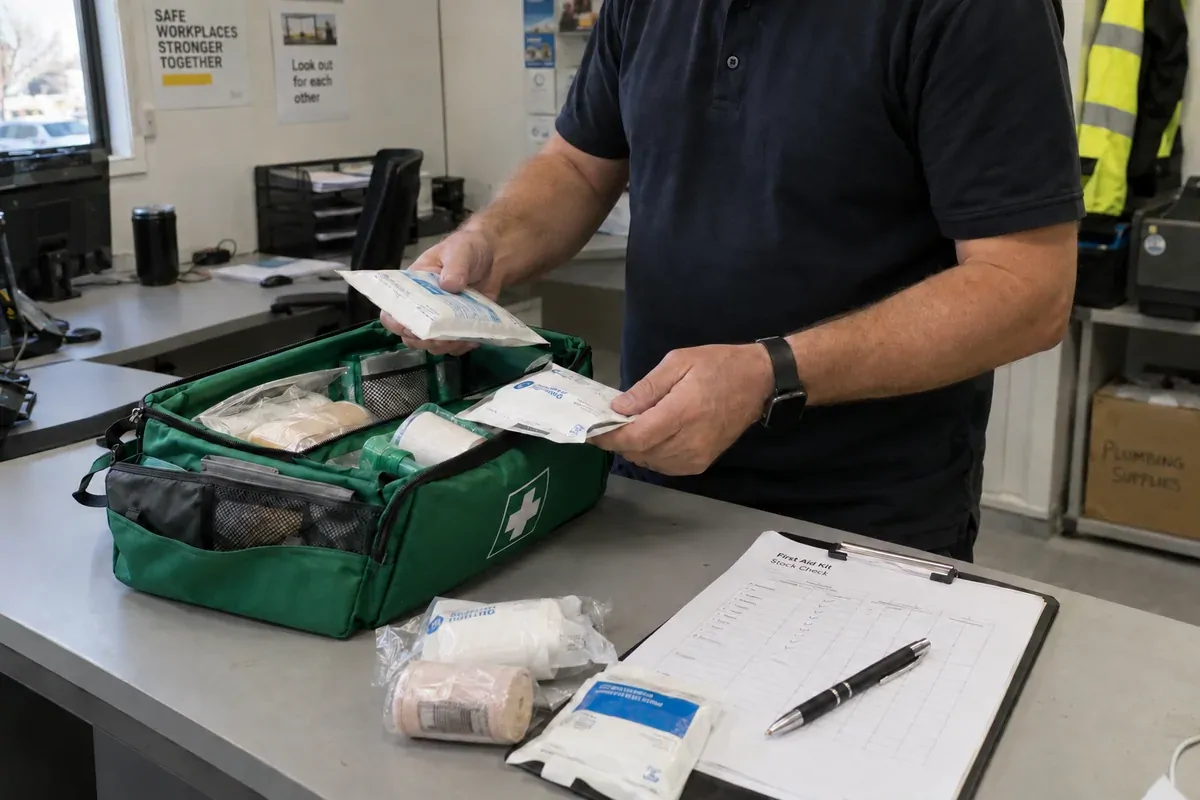
Add a kit and record its first check.
Add the kit’s name, location and contents. Check the physical kit, enter the quantities and expiry dates you find, then save the inspection.
1. Name the kit and its place
Add the kit name and location so the record can be recognised later.
2. Count beside the physical kit
Compare the current quantity with the required quantity, and note expiry details where they matter.
3. Save the check and follow-up
Record the check, then keep shortages or other exceptions visible instead of relying on memory.
Print the workplace checklist if you want a paper sheet for the walk-through, or see the Kitora check workflow.
Useful without the app
Choose a free form.
Check a kit
Take a printable contents sheet to the cupboard.
Record an inspection
Capture findings, actions, ownership and the next check.
Hand over restocking
Keep missing items, quantities and follow-up together.
Review first aider training
Keep people, certificates and review dates in one place.
When someone else needs to check
Create a checklist PDF to email.
- Open the kit and choose Email checklist.
- Kitora creates the fillable PDF locally, then prepares an unsent draft for your usual email app.
- Review the recipient, message and attachment before you choose to send.
Kitora does not store email credentials or send the message automatically. If Windows cannot open an email draft, you can save the same fillable PDF and attach it yourself.
About QR labels
Use QR labels to identify kits.
You can print or save a label for a kit and scan it to read its basic details without a Kitora server. The code does not connect to the internet or change the desktop database. Record a check back in the app when you are ready.
CSV or backup?
Use CSV for spreadsheets and a backup to move everything.
Exporting CSV creates a readable copy of kits, kit items, people and certificates for review or spreadsheet analysis. It does not include inspection history, settings or certificate attachments.
Use Backup & Settings when moving all Kitora information to another computer or preparing for recovery. CSV import only adds missing records; it does not overwrite or delete what is already in Kitora.
Using Kitora
Help with everyday tasks.